Convert Excel to SQL Tutorial
Step-by-step guide to convert Excel or CSV to SQL: top bar options, mapping matrix, and sample output for all four statement types.
Screenshots
Main UI screenshots for each configuration area.
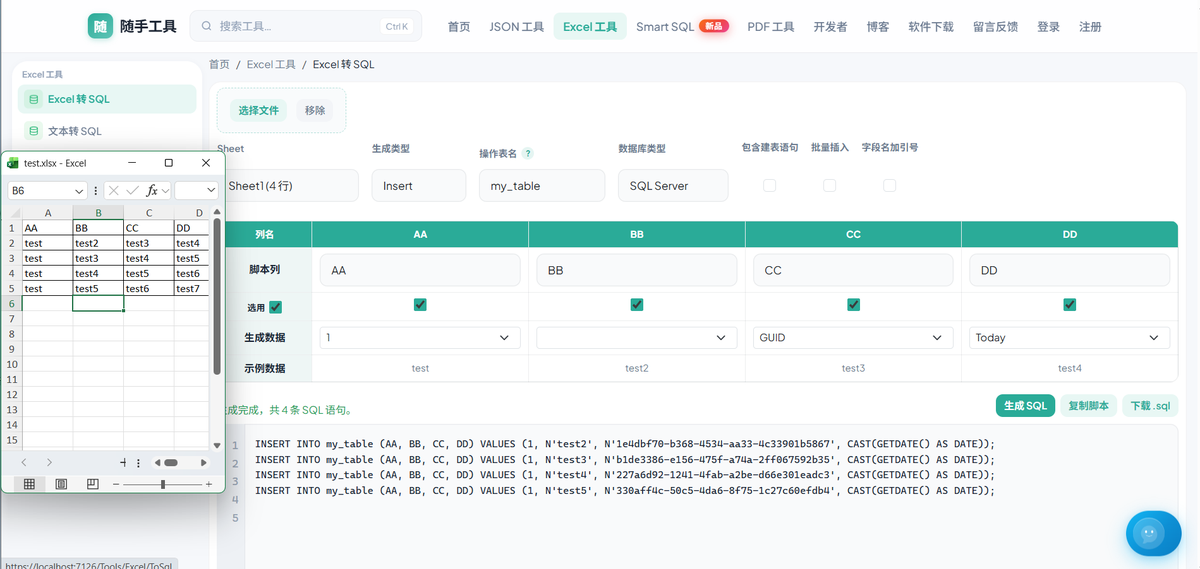
1. Prepare your Excel or CSV file
Row 1 must be headers. Duplicate headers are renamed (e.g. CreatedBy_2). CSV: UTF-8, comma-separated.
2. Top bar configuration
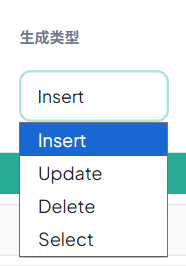
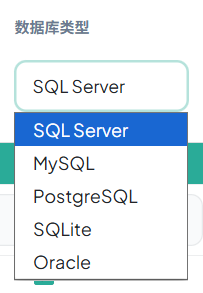
Choose sheet, statement type, table name, database type, and optional CREATE TABLE / batch insert / quoted identifiers. # prefix enables temp-table scripts.
3. Configure matrix and INSERT
Set script column targets, check Include, optionally set Generate data to GUID, Today, 1, or 0. Drag column headers to reorder, delete, or resize.
INSERT INTO dbo.Users (Name, Email, Age) VALUES ('Alice', 'alice@example.com', 28);
INSERT INTO dbo.Users (Name, Email, Age) VALUES ('Bob', 'bob@example.com', 32);
4. Generate UPDATE scripts
Choose UPDATE, check SET columns (fields to update) and WHERE columns (match keys) separately. A column cannot be both SET and WHERE. Use primary key or unique ID for WHERE.
UPDATE dbo.Users SET Email = 'new@example.com', Age = 29 WHERE UserId = 1001;
UPDATE dbo.Users SET Email = 'updated@example.com' WHERE UserId = 1002;
5. Generate DELETE scripts
Choose DELETE and check WHERE columns. One DELETE per row. Always test in a dev database first and back up production data.
DELETE FROM dbo.Orders WHERE OrderId = 'ORD-2024-001';
DELETE FROM dbo.Orders WHERE OrderId = 'ORD-2024-002';
6. Run the script
Copy or download .sql and run in SSMS, Navicat, or your client. Split very large files if needed.
Pro tips
- # table names append CREATE TABLE, SELECT, and DROP.
- Generate data GUID / Today ignores Excel cell values.
- Empty cells and NULL text output SQL NULL.
- Many columns default to 160px width; drag the header edge to resize.
- Prefer download over preview when rows exceed ~500.
- Files are deleted from the server after processing.