When AutoFTP helps
Typical use cases:
- A vendor drops daily Excel reports on FTP — you want them on disk at 08:00
- Log backups live on SFTP and must sync to an internal folder on weekdays
- Manual downloads are repetitive and local folders keep growing
AutoFTP is a ComTools Windows desktop utility for FTP, FTPS (TLS), and SFTP with scheduled jobs and run history.
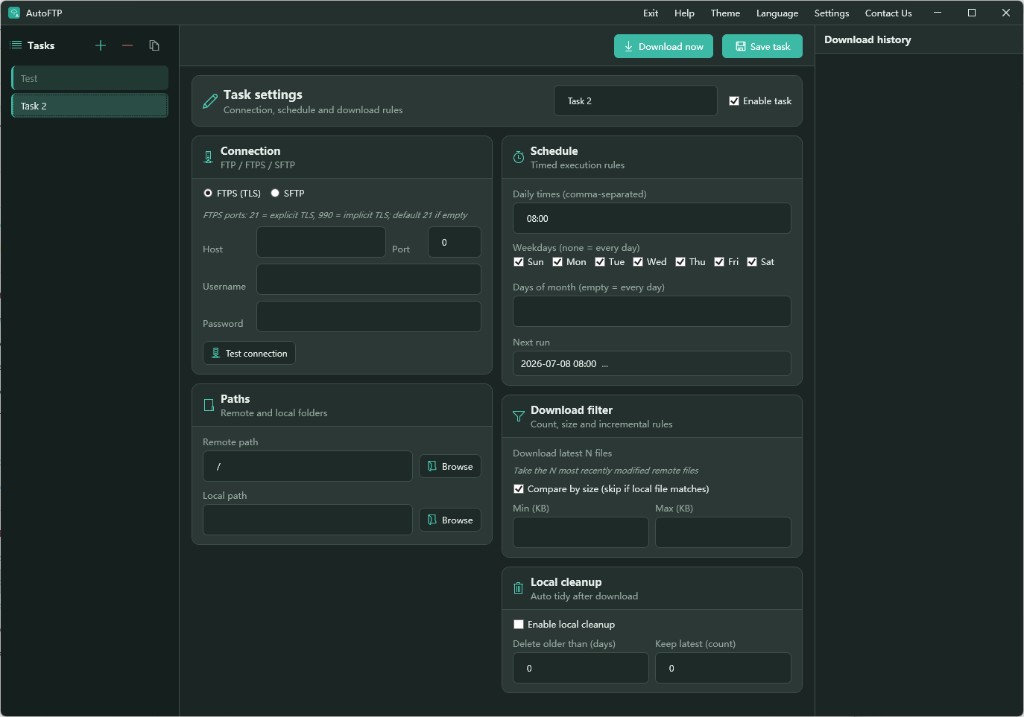
UI overview
| Area | Purpose |
|---|---|
| Left task list | Multiple jobs — add, duplicate, delete |
| Center panel | Connection, paths, schedule, filters, cleanup |
| Right history | Per-run log for troubleshooting |
The toolbar offers Download now, Save task, plus theme and language settings.
Step 1: Download and launch
- Open Downloads or the AutoFTP product page.
- Download
AutoFTP.exe. - Run it; switch language from the Language menu if needed.
Keep the app in a stable folder (e.g. D:\Tools\AutoFTP\) and avoid temp directories for local save paths.
Step 2: Connection
Under Connection (FTP / FTPS / SFTP):
- Pick FTPS (TLS) or SFTP per server policy.
- Set Host and Port (21 for FTP, 22 for SFTP common).
- Enter Username and Password.
- Click Test connection before saving.
Common failures: firewall blocks, passive mode, insufficient account permissions.
Step 3: Paths
- Remote path — server folder, e.g.
/reports/daily/ - Local path — Windows folder, e.g.
D:\FTP\reports\
Use Browse for local path. Ensure the Windows user running AutoFTP can write there.
Step 4: Schedule
| Option | Example | Notes |
|---|---|---|
| Daily times | 08:00,18:00 |
Comma-separated |
| Weekdays | Mon–Fri | Optional restriction |
| Days of month | 1,15 |
Monthly runs |
| Next run | Auto | Preview after save |
Check Enable task and Save task for scheduled runs.
Step 5: Download filters (optional)
- Download latest N files — only newest remote files
- Compare by size — skip when local copy matches
- Min / Max (KB) — ignore tiny or huge files
Useful when remote folders accumulate dated files and you only need recent ones.
Step 6: Local cleanup (optional)
- Delete older than (days)
- Keep latest (count)
Align retention with policy: 90 days for finance reports, 7 days for debug logs.
Manual runs and troubleshooting
- Save task after edits, then Download now to verify.
- Check Download history on failure.
- Scheduled runs require the PC awake at trigger time.
Example scenarios
Daily report at 08:00
- Daily times:
08:00 - Compare by size: on
- Local:
D:\Data\DailyReport\
Weekly SFTP log sync
- Protocol: SFTP
- Weekdays: Monday only
- Daily times:
06:00 - Cleanup: delete older than 30 days
Related ComTools
AutoFTP moves files locally; process them with Excel Merge, Excel to SQL, and other online tools.
Links
Feedback welcome on Messages.