When Cursor Watcher helps
If you often run several Cursor projects and Agents in parallel, you may hit:
- Switching IDE windows just to see who is working vs waiting for approval
- Losing track of which window to send the next prompt to
- Missing completion moments when Agents finish in the background
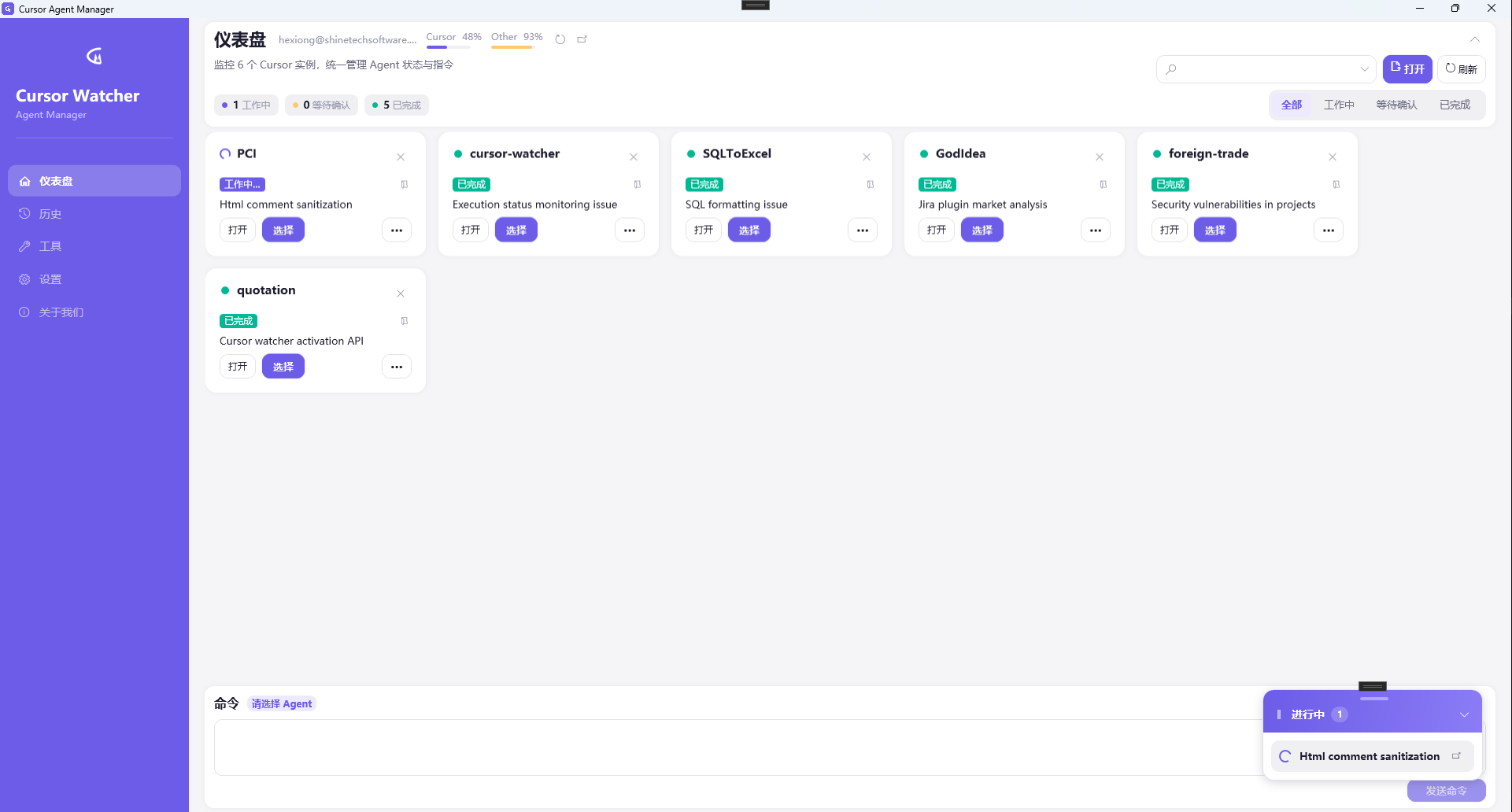
Cursor Watcher is a ComTools Windows desktop app for monitoring and directing multiple Cursor IDE / Agent instances: status, commands, notifications, and usage overview.
Download CursorWatcher-Setup-1.0.0.exe · Official site
UI overview
| Area | Purpose |
|---|---|
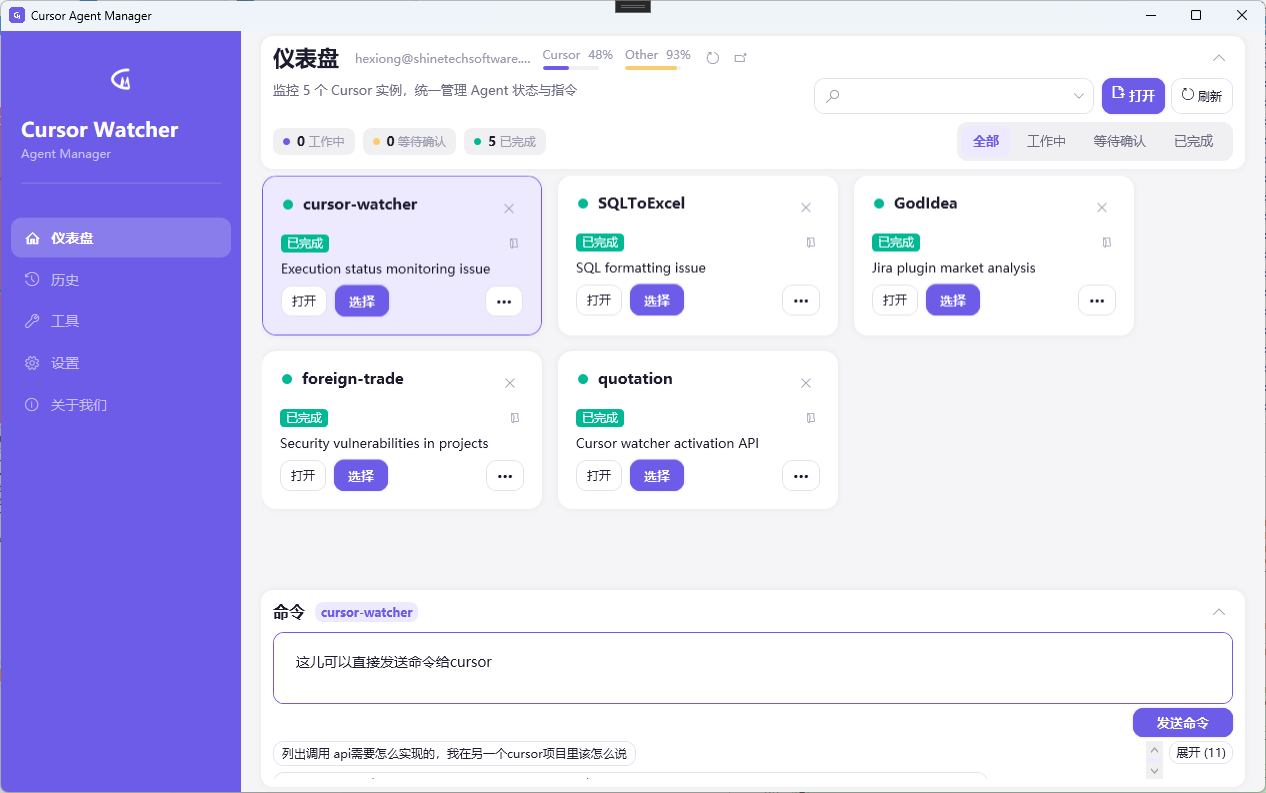
| Dashboard | Agent cards by project, filterable by status |
| Command panel | Send the next task to the selected Agent |
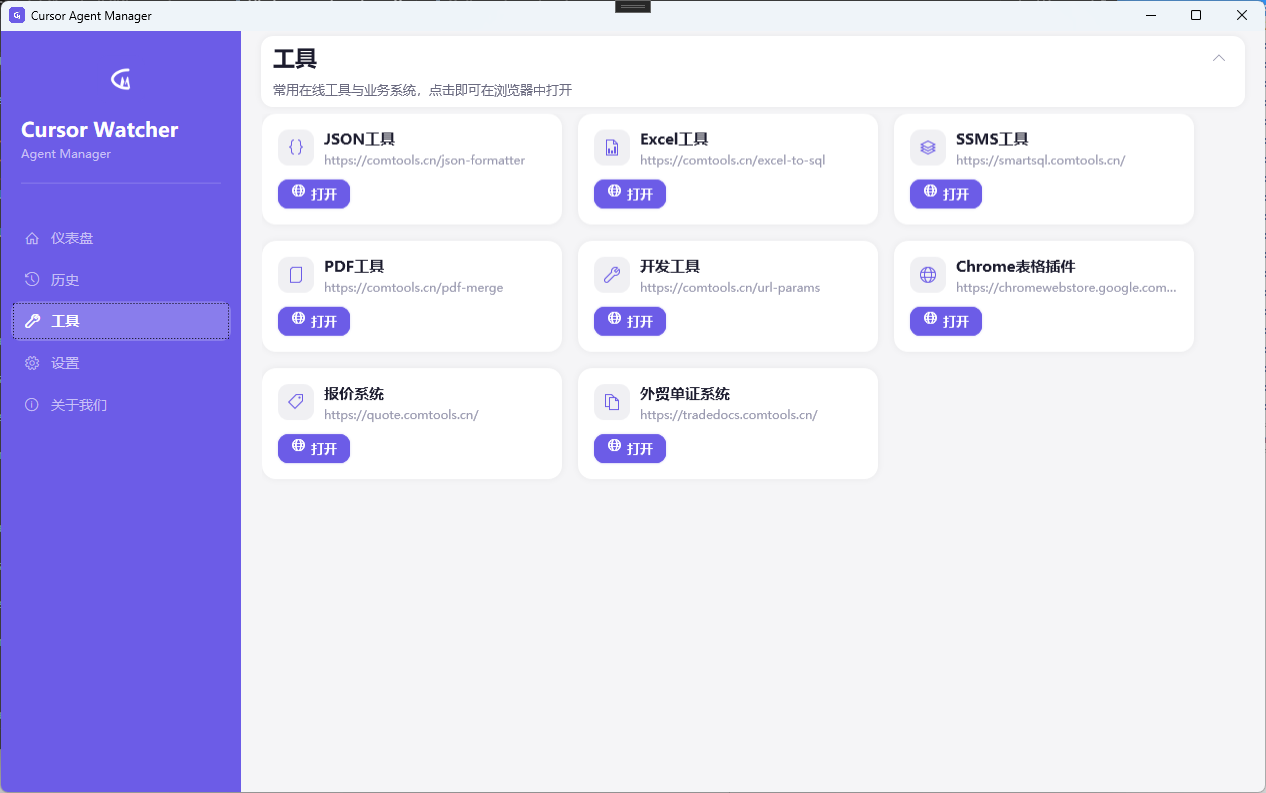
| Tools page | Shortcuts to online tools and business apps |
| In-progress overlay | Summarize running chats across projects |
Step 1: Install
- Open the Cursor Watcher product page or Blog featured downloads.
- Download
CursorWatcher-Setup-1.0.0.exeand install. - Launch the app; UI supports Chinese and English.
Requires Windows 10 / Windows 11. Built with .NET / WPF.
Step 2: Open Cursor
Start one or more Cursor projects as usual. Watcher discovers running Cursor instances and shows Agent status on the dashboard, for example:
- Working
- Waiting for confirmation
- Completed
No manual project path binding is required.
Step 3: Direct Agents from one place
- Filter the dashboard by status to find the right Agent.
- Select it and send the next task from the command panel — no IDE window hopping.
- When a job finishes, a Windows notification appears so you can review results promptly.
Feature highlights
Multi-instance monitoring
Auto-discover running Cursor windows and show Agent status per project.
One-click commands
Send the next prompt from the command panel after selecting an Agent.
Completion notifications
System tray / Windows toasts when tasks finish.
In-progress overlay
Floating summary of ongoing chats across projects.
Usage overview
Dashboard glance at Cursor usage while you run Agents in parallel.
Tool shortcuts
Open ComTools online tools and related business systems from one place.
Example scenarios
Two repos at once
Run Agents in two Cursor windows. Use Watcher to see who is waiting on you, approve, and continue — without hunting the taskbar.
Long-running background Agents
Let an Agent work while you do something else. Finish notifications bring you back when results are ready.
Related ComTools
Cursor Watcher is from ComTools. You can also use JSON tools, Excel tools, PDF tools, and more. The Watcher tools page can open these entries quickly.
Cursor is a product of Anysphere. Cursor Watcher is an independent third-party desktop app.
Links
Feedback welcome via the About page.